
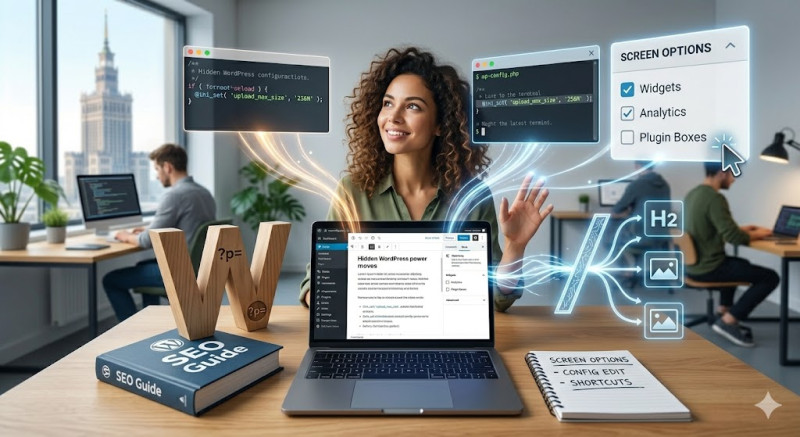
Most people use WordPress like a standard sedan—they drive it from point A to point B without ever realizing there is a sport mode hidden under the hood.
Beyond the basic loop of installing plugins and typing text, the core WordPress ecosystem hides clever shortcuts, built-in features, and clean workarounds that can drastically save you time, cut down on unnecessary plugins, and boost your site's efficiency.
Whether you are a freelancer managing client sites or a creator optimizing your personal brand, here are five WordPress power moves you need to start using today.
1. The Screen Options Hack (Unclutter Your Workspace)
Have you ever logged into your WordPress dashboard and felt immediately overwhelmed by a wall of notification boxes, analytics graphs, and plugin ads?
There is a simple, built-in way to turn it all off.
-
Look at the top right corner of almost any backend page (Dashboard, Posts, Pages).
-
Click the small dropdown called "Screen Options."
-
Uncheck the boxes for everything you don't need to see.
Pro Tip: This works perfectly inside the post editor too. If you are tired of scrolling past 10 different plugin meta-boxes just to find your featured image settings, use Screen Options to hide the clutter and focus on writing.
2. Bypass the "Upload Limit" Trap via WP-Config
We’ve all been there: you try to upload a beautiful custom theme or a high-res video file, only to be hit with the dreaded error: "The uploaded file exceeds the upload_max_filesize directive."
Before you open a support ticket with your hosting provider or download a heavy file-manager plugin, try this 60-second fix. Access your site files via FTP or your host's File Manager, open your wp-config.php file, and paste this code right before the line that says "That's all, stop editing!":
@ini_set( 'upload_max_size' , '256M' );
@ini_set( 'post_max_size', '256M' );
@ini_set( 'max_execution_time', '300' );
This forces WordPress to allocate more memory and time for uploads, bypassing basic server throttles instantly.
3. Master the Block Editor Keyboard Shortcuts
If you are still clicking the "+" icon every single time you want to add an image, list, or heading in the Gutenberg block editor, you are losing valuable time.
The secret weapon of rapid content creation is the forward slash (/).
-
Type
/headingand hit enter to instantly switch to an H2/H3 tag. -
Type
/imageto open the media library window immediately. -
Type
/galleryto quickly drop a photo grid.
Want to see the entire secret map of shortcuts? Press Shift + Alt + H (on Windows) or Options + Shift + H (on Mac) while inside the editor to bring up the ultimate master list of hotkeys.
4. The Native Close-Up: Image Cropping Without Photoshop
Need to square up a landscape photo for a team bio page, but don't want to boot up heavy editing software? WordPress has a built-in photo editor that most people completely ignore.
-
Go to Media ➔ Library and click on any image.
-
Click the Edit Image button beneath the file.
-
You can natively crop, rotate, flip, and scale the image right there.
More importantly, you can choose to apply the changes to "Thumbnail only." This means your main image stays perfectly intact elsewhere, but your sidebar or blog grid gets a perfectly cropped square version automatically.
5. Secret URL Shortlinks (Built-In Bitly)
If you need to quickly share a link to one of your posts on social media but the title makes the URL dangerously long, you don’t need an external URL shortener. WordPress creates clean shortlinks for you out of the box.
[ Long URL ]  ➔  https://yourdomain.com/how-to-optimize-wordpress-in-ten-easy-steps/
[ Shortlink ] ➔  https://yourdomain.com/?p=1423
To find it, simply click on "Get Shortlink" in the classic view, or check the summary panel of your post. It uses your unique post ID (?p=1423). It looks clean, it never expires, and it keeps 100% of the link equity on your own domain.